
DXFTool

DXFTool

Image to DXF Converter Online

Upload a JPG, PNG, or WebP image and quickly create an editable DXF draft with a preview.

Upload an image to DXF

Result examples

DXF
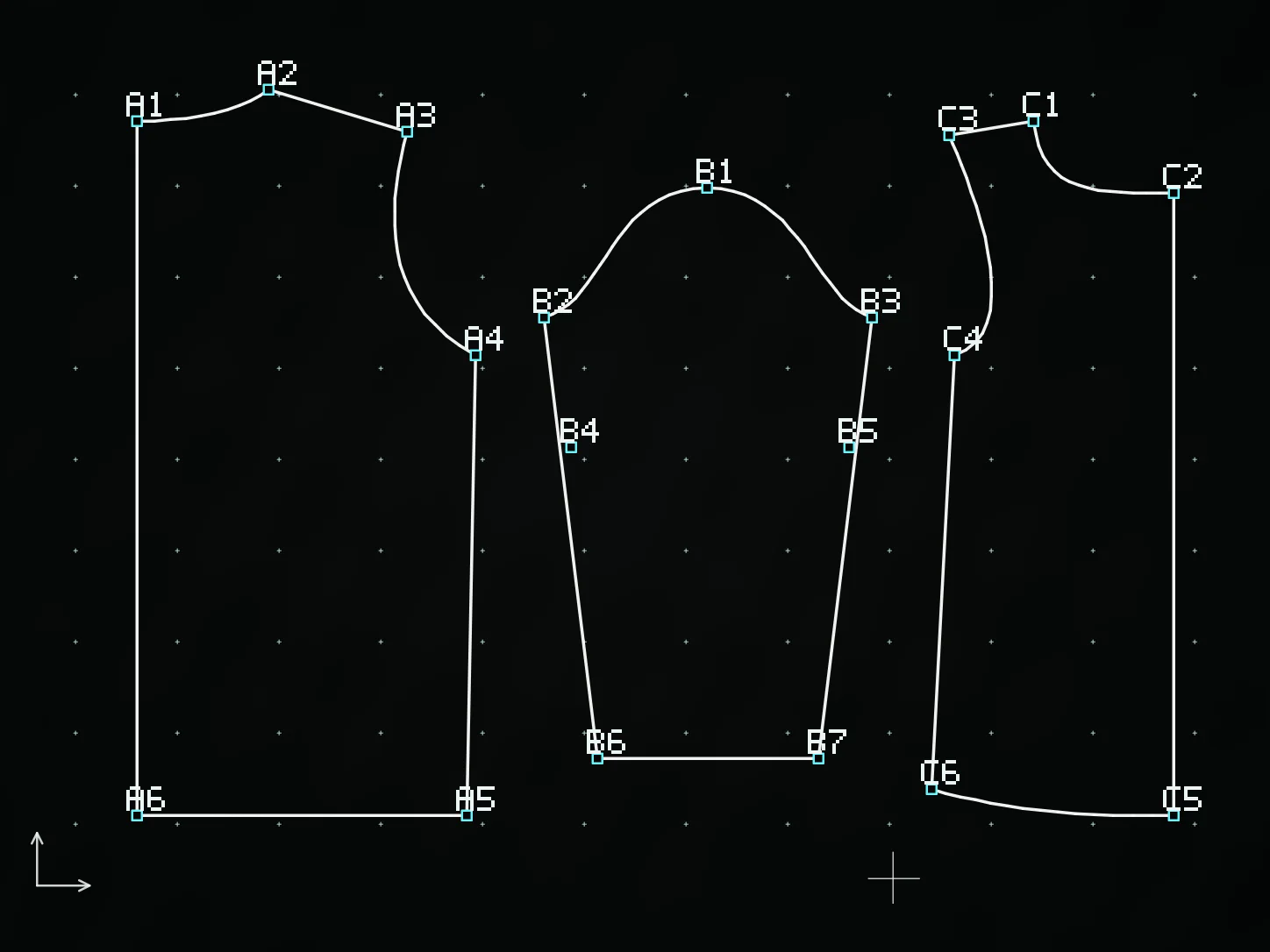
Garment-pattern DXF geometry preview for CAD review
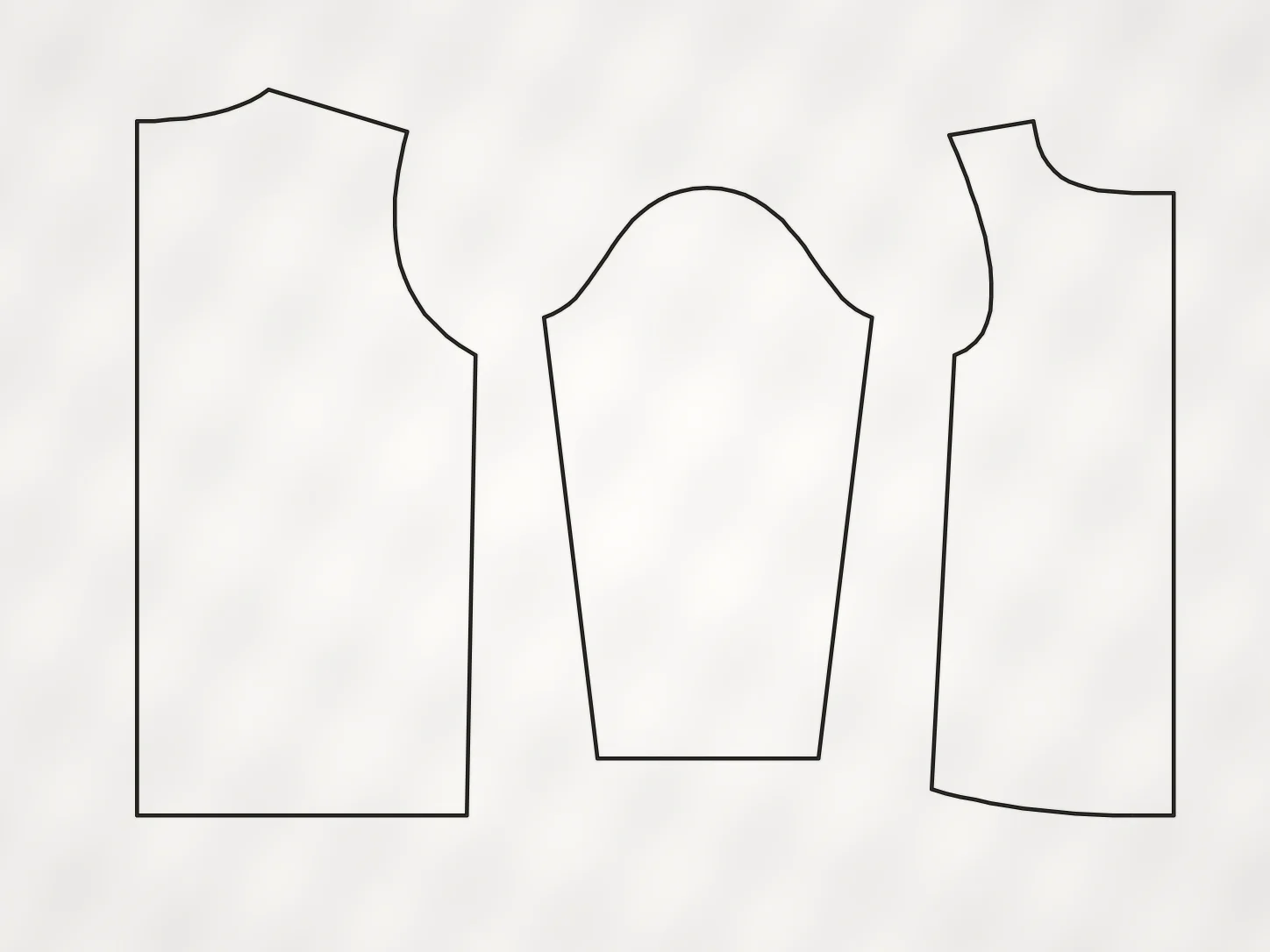
Pattern outline source image showing garment-piece contours
Pattern outlineDXF result
Three image formatsFailed jobs refundedPreview before download

Result examples

See what image to DXF looks like

Switch between inputs and drag the divider to compare the original with the DXF geometry preview.

DXF geometry from the garment pattern line art, ready for CAD review
Garment pattern line-art source image showing piece contours
OriginalDXF result
Clear piece contours can be the starting point for a DXF draft to continue reviewing in CAD.

What this tool is for

Turn a usable image into a DXF draft you can review

Use this converter when you already have a drawing, logo, diagram, line-art image, or pattern template and need a DXF starting point for a CAD workflow. It prepares a draft from visible contours; it does not replace the checks required by your downstream work.

  • Start from an existing JPG, PNG, or WebP image instead of redrawing every visible contour by hand.
  • Compare the source and preview before you download a DXF draft.
  • Use the downloaded DXF as an input to your own CAD review, cleanup, measurement, or production-preparation workflow.

Prepare these inputs

The homepage accepts JPG, PNG, and WebP images up to 10 MB. Cleaner source material makes the output easier to inspect.

  • High-contrast line drawings, logos, templates, and diagrams with clearly visible edges.
  • JPG or PNG files whose subject is separated from background clutter and heavy shadows.
  • Complete images with a clear subject that you can compare against after export.

Clean or review these first

Some source characteristics need a cleanup step or a more careful manual check after conversion.

  • Photos or scans with shadows, folds, blur, texture, noisy backgrounds, or weak edge contrast.
  • Images where text, dimensions, complex fills, or overlapping elements obscure the intended contour.
  • Files where exact dimensions, layers, manufacturing details, or downstream compatibility must be preserved without review.

How to use it

Convert a source file to DXF in three deliberate steps

The tool prepares the conversion. Your CAD review decides whether the result is suitable for the next step of your work.

01

Choose a source file

Click, drag and drop, or paste a JPG, PNG, or WebP image. You can inspect the local preview before a task is submitted.

02

Create the DXF draft

Submit the task when you are ready. The page tracks processing and shows the available preview and DXF artifact when it finishes.

03

Download and check it

Open the result in your own CAD software, compare it to the source, and confirm it works for the downstream requirement.

After the download

Treat the generated file as a reviewable CAD input

A successful conversion is the start of a CAD check, not a guarantee that every source detail or downstream requirement was preserved.

Convert a file now

CAD review checklist

01

Compare visible paths and curves against the original source image.

02

Confirm that closed shapes, scale, units, and layer behavior match the needs of your CAD workflow.

03

Remove duplicates, simplify dense curves, or repair gaps when your downstream process requires it.

04

Keep the original source and your reviewed DXF together so later changes remain traceable.

Choose the next useful tool

Use the route that matches the problem in front of you

Do not force every source through the same converter. Pick the format-specific tool, cleanup step, or guide that matches your input and the review work still needed.

My work starts from a document or pattern

Use the dedicated route for PDFs and fashion or pattern workflows instead of treating them as generic image files.

Frequently asked questions

Learn about DXFTool use cases, image quality, scale, production review, and path cleanup.

Test one file in your own CAD workflow

Convert a real image to a DXF draft, then inspect the paths and geometry in the software you actually use. Real compatibility matters more than an unverified export claim.